
Linking Desktop to the web shop
With a pairing code your online orders arrive on the KwikEat Desktop order board, their status goes back to the customer, and you publish the menu to the web shop.
If you have a KwikEat Merchant web shop next to KwikEat Desktop, link them. Then:
- online orders arrive on the Desktop order board with a sound, and are printed there;
- every step you take on the order board (In the kitchen, Ready, On the way, Delivered, Cancelled) goes back to the web shop, so the customer sees how it's going;
- the Desktop menu goes to the web shop, with Publish;
- you see the portal's couriers in Desktop too, and Desktop's deliveries in the portal;
- you pay less commission in KwikEat Online.
Linking
- Log in to KwikEat Merchant as the shop's owner.
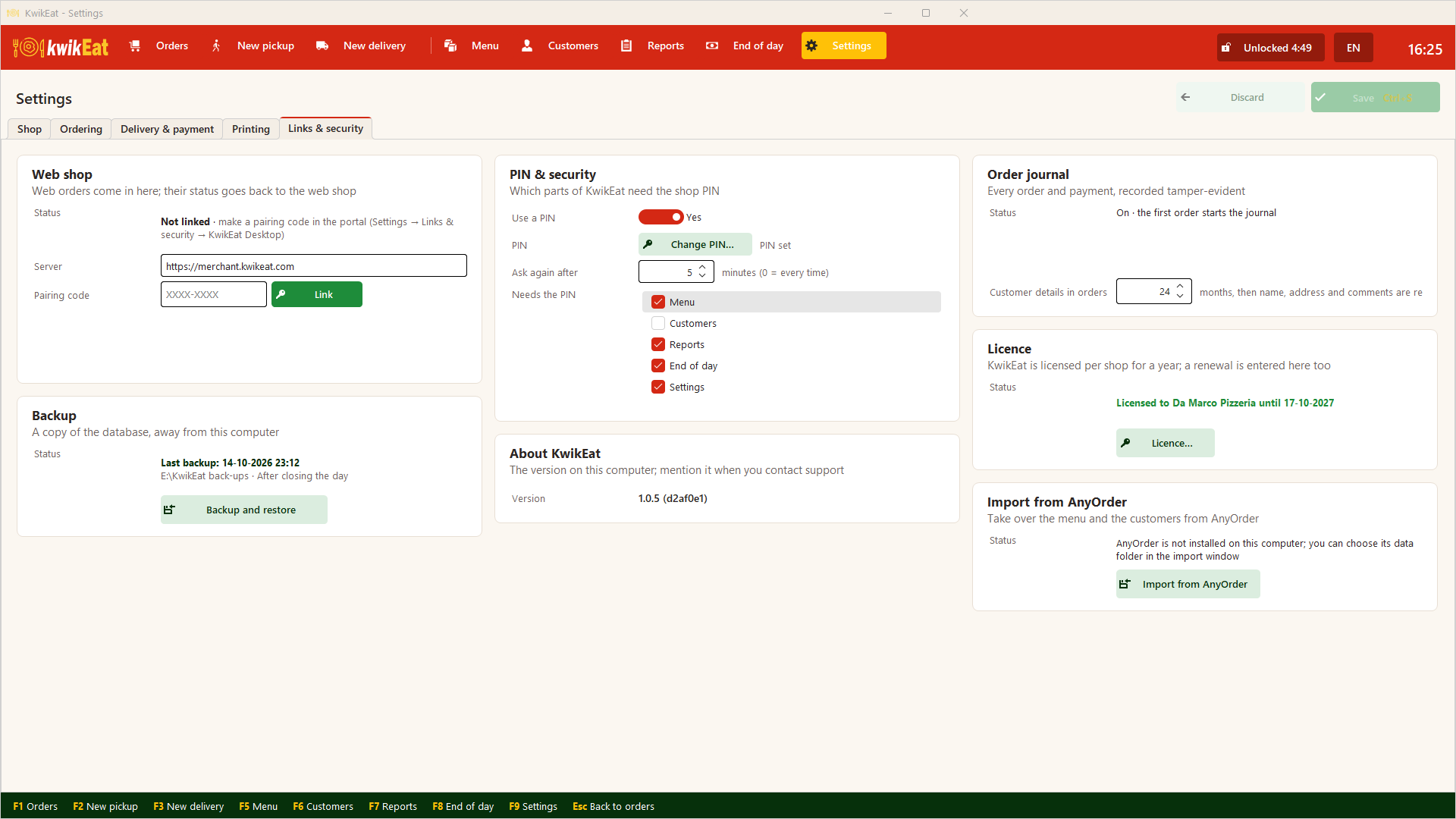
- Go to Settings → Links & security → KwikEat Desktop and tap Make a pairing code.
- Enter the code in KwikEat Desktop: Settings (
F9) → Links & security → Web shop.
The code works once and is valid only briefly. A shop has one Desktop: linking another one ends the previous link.
What happens then
- Orders paid online arrive once the payment is confirmed; orders paid at the door arrive at once.
- If the internet drops, Desktop simply carries on. Orders placed online in the meantime arrive as soon as the connection is back, and statuses are sent then. At the bottom of the screen you see whether the link works.
- Desktop leads: in the portal you can see a linked shop's orders, but not move them on, change or cancel them.
Publishing the menu
For a linked shop the Desktop menu has a bar with Publish. It also tells you whether the web shop shows this menu or an older one.
- Publishing replaces the web shop's whole menu with the Desktop menu, with combinations, deals and availability. The first time Desktop asks for confirmation: groups and products that were only in the web shop disappear.
- From then on you change the menu only in Desktop. The portal shows it, but only the image and the texts above and below the products of each group can still be changed there.
- Publishing happens with the button, not by itself: you decide when a changed menu goes live.
Unlinking
In Desktop: Web shop → unlink. Unlink it in the portal too (Settings → Links & security → KwikEat Desktop). After that no more web orders arrive.
With a linked Desktop you don't need the Print Connector: Desktop prints the web orders itself.
Last updated: 15 October 2026