
Taking a collection order
With F2 you take a collection order: products by menu number or tiles, options, the time, and paying now or later.
Press F2 (or tap New pickup).
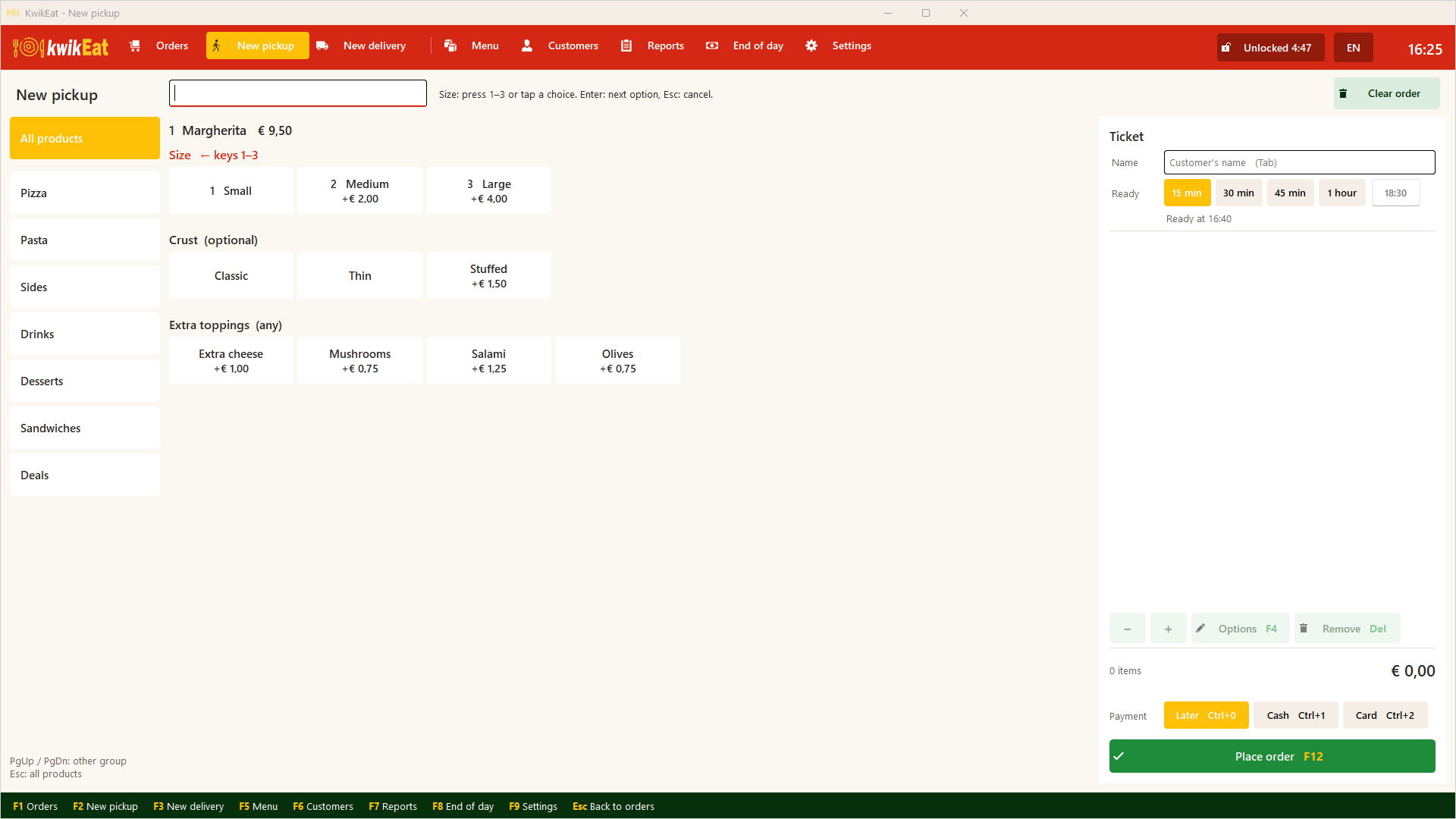
Adding products
Type or tap, whichever suits you:
- Menu number: in Quick entry type the number and press
Enter.12adds number 12,3*12adds three. - Name: type letters to search by name; choose with the arrows and
Enter. - Tiles: tap a group, then the product.
PgUpandPgDnchoose another group,Escshows all products.
If a product has options, KwikEat asks them straight away. Choose with the number keys (1, 2, …) or by tapping. Required options must be chosen; skip the rest with Add now. With a combination you pick the products slot by slot.
The receipt on the right shows the lines. + and − change the quantity of the chosen line, Options changes its options, Remove takes the line off. Clear order starts again.
Name and time
- Customer's name:
Tabjumps there. Handy at collection, and the name is on the receipt. - Ready: when the order must be ready. Choose a number of minutes, or type a time and press
Enter.
Paying: now or later
With collection the customer can pay straight away or when collecting:
- Choose a payment method (e.g. Cash or Card) if the customer pays now.
- Choose Later if they pay when collecting. The order is then on the order board with To pay; you settle it with
Pon the card. See The order board.
You set the payment methods in Settings → Delivery & payment.
Placing
Tap Place order (or F12). The receipt is printed and the order is on the order board in the New column. If you use a kitchen ticket, it goes now or once the order goes to the kitchen.
In Germany and France KwikEat doesn't record payments: there is no payment row, and KwikEat prints an order slip instead of a till receipt. See Order mode.
Last updated: 15 October 2026