
Printing and the kitchen ticket
The receipt printer per PC, a receipt on A5 or A4, the kitchen ticket without prices and when it is printed.
You set up printing in Settings (F9) → Printing.
The receipt
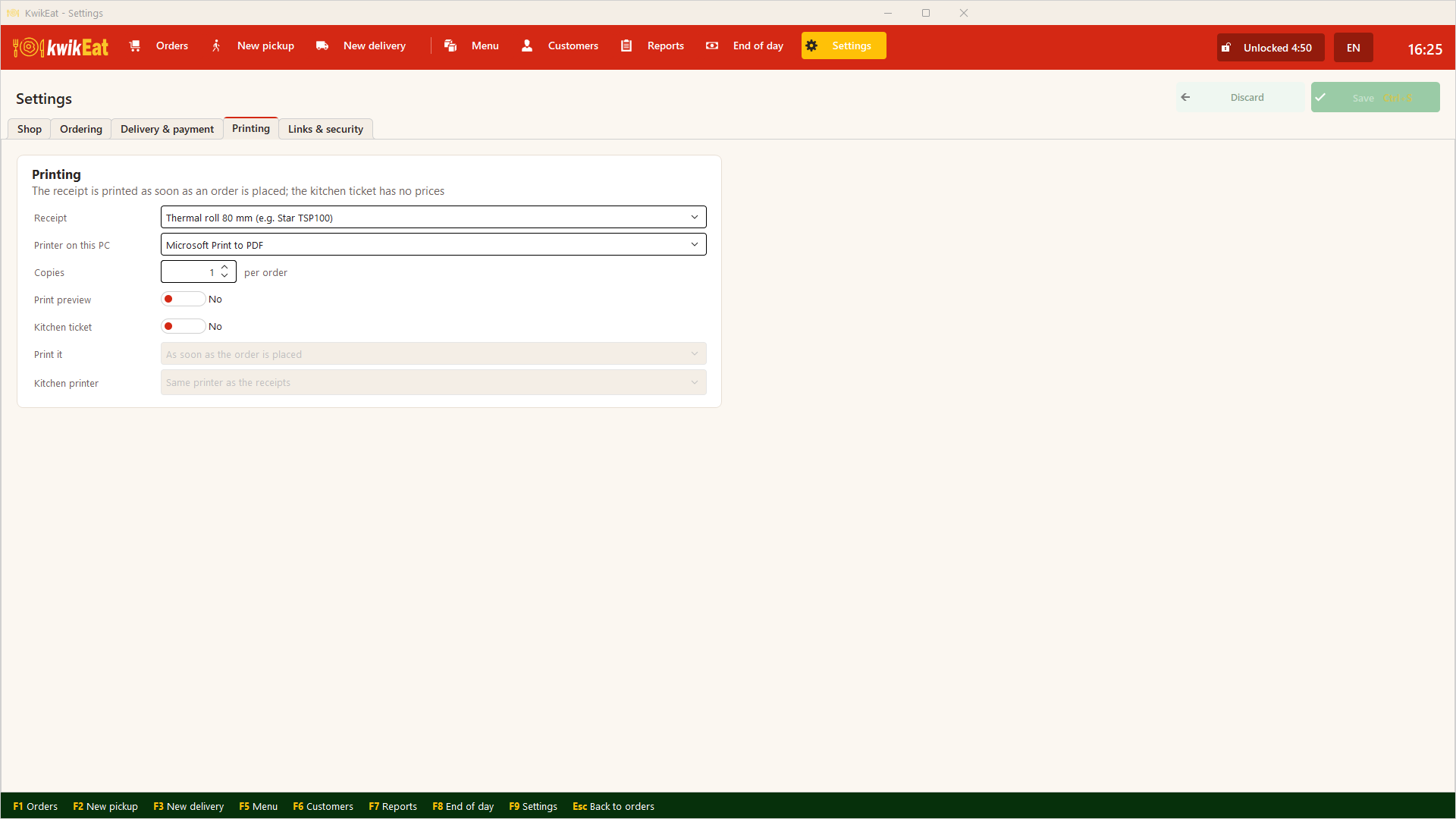
- Printer on this PC: every computer has its own printer. Choose the receipt printer, the Windows default printer, or a normal printer with A5 or A4.
- Print preview: shows the receipt on screen first instead of printing it at once. Handy while setting up.
The receipt is printed as soon as an order is placed, and again after a change. From the order board you reprint it with Print in the open order.
The kitchen ticket
The kitchen ticket is a ticket for the kitchen: without prices and without menu numbers, with the lines and options big and clear. It is off by default.
| Setting | Meaning |
|---|---|
| Kitchen ticket | On or off |
| When | As soon as the order is placed, or only when it goes to the kitchen (the In the kitchen step on the order board) |
| Kitchen printer | Per computer: Same printer as the receipts, or a printer of its own in the kitchen |
Every order gets its kitchen ticket once. If it is changed afterwards, a new one marked CHANGED follows; when cancelled, a slip marked CANCELLED. Reprint with K on the card or Kitchen in the order.
With a combination the chosen products are indented under the combination, each with its own options.
When the trial or licence has expired, KwikEat keeps working but printing is off until you renew the licence. See Installing and first start.
You don't need the Print Connector with KwikEat Desktop: Desktop prints itself, web orders too. The Print Connector is only for KwikEat Merchant without Desktop.
Last updated: 15 October 2026