
The screen and the shortcut keys
The buttons at the top, the function keys F1 to F9, the PIN and the notices.
At the top are the parts of KwikEat, each with a function key. The part you are in is yellow. The same keys are listed again at the bottom, with what they do.
| Key | Part | What you do there |
|---|---|---|
F1 |
Orders | The order board with the running orders: The order board |
F2 |
New pickup | Take a collection order: Collection |
F3 |
New delivery | Take a delivery order: Delivery |
F5 |
Menu | Products, groups, prices and options: The menu |
F6 |
Customers | The customer and address book: Customers |
F7 |
Reports | Takings, products, hours, couriers: Reports |
F8 |
End of day | Count the cash and close the day: End of day |
F9 |
Settings | Shop, printing, delivery, PIN: Settings |
Esc |
Back to the orders |
Everywhere else: Enter is next or confirm, Ctrl+F searches, and in lists Ins adds and Del deletes.
The PIN
Parts with a padlock ask for the shop's PIN. After entering it, top right shows Unlocked with a countdown: while it runs, you can carry on without the PIN. Tap it to lock again at once.
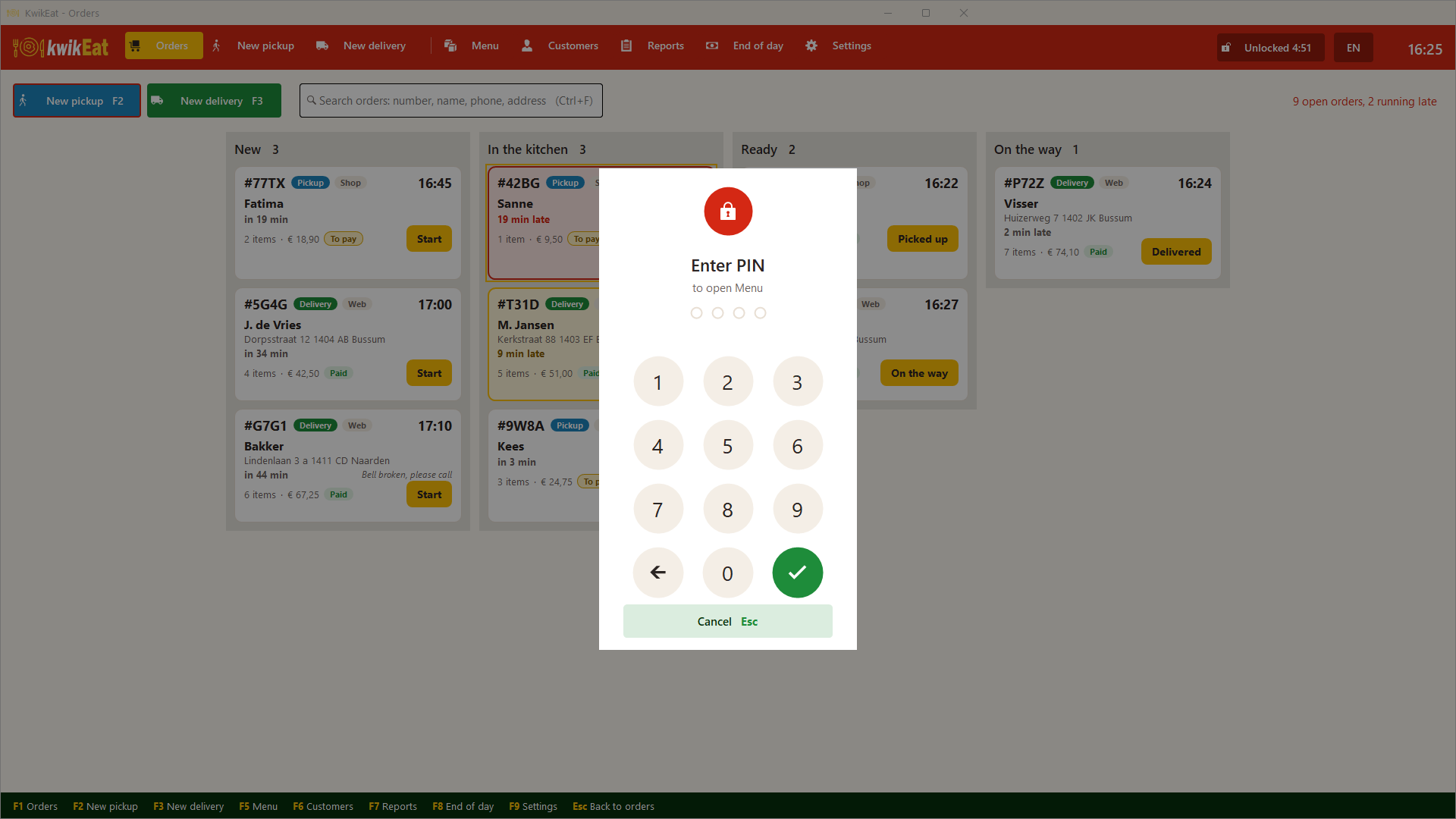
Which parts ask for the PIN is set in Settings → Links & security → PIN & security.
Forgot the PIN? Tap Forgot the PIN? on the PIN pad. With the codes of your own licence you can set a new one; if you don't have them at hand, support@kwikeat.com helps you with a reset code.
Language
Top right, next to the clock, you choose the screen language: Nederlands, English, Deutsch, Français or Español. It applies per PC and changes at once; an order you are entering stays. Customer receipts follow the language of the shop's country.
Notices
Short notices appear at the bottom right: a new web order (with a sound), a new version, a backup that succeeded. Most disappear by themselves; important ones stay until you close them.
Last updated: 15 October 2026