
Options and choices
Size, crust, extra toppings, sauces or a kids' portion: with options the customer orders a product the way they like it.
An option is a question that belongs to a product: Which size?, Which sauce?, Extra toppings?. The answers are the choices, each with its own extra charge (€ 0.00 is fine too).
Setting up an option
Choose the option on the right of the menu and fill in:
| Column | Meaning |
|---|---|
| Option | The question as the customer sees it: Size |
| Customer may | Choose one: exactly one choice (size, crust). Choose any: as many as the customer likes (extra toppings, sauces). |
| Required | On: the customer has to choose before the product can be ordered. With Choose any, required means at least one. |
| Price in % | On: the extra charges of the choices are percentages of the product's price instead of amounts. |
Under Choices for … you add the answers with their extra charge. A negative extra charge is allowed: that is a discount.
For the whole group or for one product
Above the options you choose where they apply:
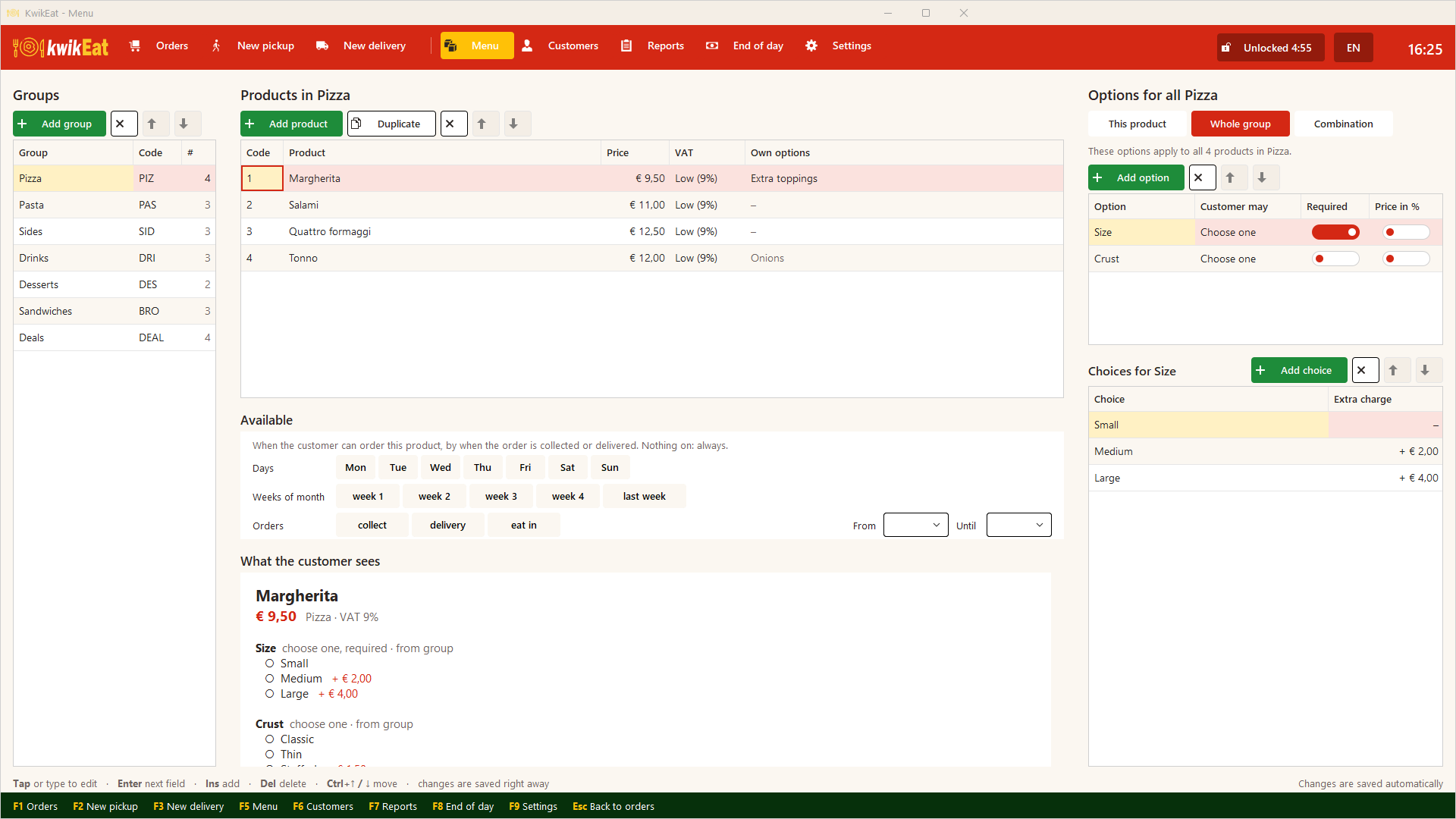
- Whole group: the option applies to every product in the group. Ideal for Size and Crust on all pizzas.
- This product: the option applies to the chosen product only, like Onions on the Tonno pizza.
A product has both: first the group's options, then its own. Above a product's options you see which it gets from the group (Also from group Pizza: Size, Crust).
Put an option that belongs to nearly all products on the group. If one product must not have it, put that product in a group of its own, or give the option to the products themselves.
Extra charge in percent
With Price in % the charges are percentages of the product's price. Handy when the surcharge or discount should scale with the price:
- Pasta, option Portion: Regular 0%, Kids -25%. A € 12.00 pasta costs € 9.00 as a kids' portion, a € 14.00 pasta € 10.50: one option for the whole group, and the discount is right for every price.
What the customer and the crew see
When an order is taken, KwikEat asks the options in the order of the menu. With a required option the product can only be added once something is chosen; you skip the optional ones with Add now. Pick choices with the keys 1, 2, 3 … or by tapping.
The receipt and the kitchen ticket show the chosen choices under the product.
Examples
Pizza with size and crust (on the group)
Group Pizza, Whole group:
- Size: Choose one, required. Small € 0.00 · Medium + € 2.00 · Large + € 4.00
- Crust: Choose one, not required. Classic € 0.00 · Thin € 0.00 · Stuffed + € 1.50
Extra toppings (on one product)
Product Margherita, This product:
- Extra toppings: Choose any, not required. Extra cheese + € 1.00 · Mushrooms + € 0.75 · Salami + € 1.25 · Olives + € 0.75
Sauce with the fries
Product Fries, This product:
- Sauce: Choose any, not required. Mayonnaise + € 0.50 · Ketchup + € 0.50 · Garlic sauce + € 0.75
A drink in two sizes (on the group)
Group Drinks, Whole group:
- Size: Choose one, required. 33 cl € 0.00 · 50 cl + € 1.00
Option or combination?
An option adds something to a product. If the customer should pick other products from the menu, such as two pizzas and a drink for a fixed price, use a combination. The difference:
| Option | Combination | |
|---|---|---|
| Chooses from | choices you type with the option | products and groups of the menu |
| Price | product price + extra charges | its own price rule (fixed, or the dearest are paid) |
| Chosen product keeps its own options | n/a | yes: the pizza in a meal can get extra cheese |
| Reports | counts as the product itself | each chosen pizza counts as a pizza |
| VAT | the product's rate | each part its own rate |
Last updated: 15 October 2026