
The menu: the basics
Groups, products, options and choices: how the KwikEat menu is put together, and how to build yours.
The menu is the heart of KwikEat. Everything you sell is on it, and so is everything a customer can pick with a product: the size of a pizza, the sauce with the fries, or the two pizzas in a pizza meal. The menu may look complicated at first, but it is made of only a few building blocks. Once you know them, you can build almost any menu with them.
Open the menu with F5 (or the Menu button). It is protected by the shop's PIN.
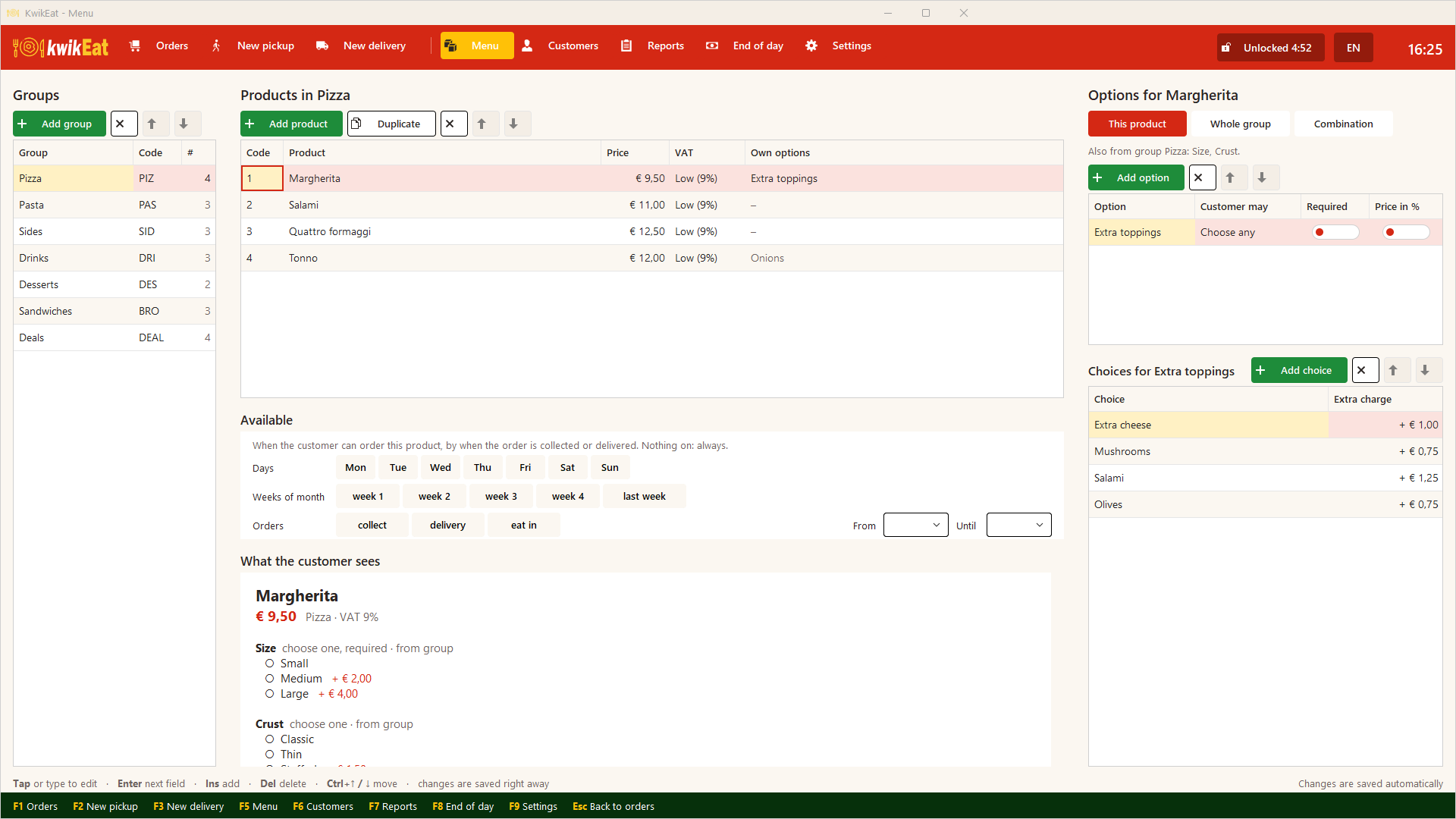
The four building blocks
| Building block | What it is | Example |
|---|---|---|
| Group | A part of the menu | Pizza, Pasta, Drinks |
| Product | What the customer orders, with a price and a VAT rate | Margherita € 9.50 |
| Option | A question about a product | Size, Crust, Extra toppings |
| Choice | An answer to that question, with an extra charge | Large + € 4.00 |
A product can also be a combination: a product the customer puts together from other products on the menu, such as a pizza meal or a half-and-half pizza. See Combinations.
The screen follows that order from left to right: Groups, then the Products of the chosen group, and on the right the Options of the chosen product with the Choices of the chosen option below them. Under the products, What the customer sees shows at once how the chosen product looks to a customer, with all its options and prices.
Groups
A group has a name and a code (up to 6 characters, e.g. PIZ). The order of the groups is the order on the order screen and in the web shop. Move them with the arrows, or with Ctrl+↑ and Ctrl+↓.
A group can have options of its own. They apply to every product in the group: give the Pizza group the option Size and you don't have to add it to every pizza. See Options and choices.
Products
For each product you fill in:
- Code: the menu number (up to 5 characters). At the counter you type that number and
Enterto add the product, just like in AnyOrder:12adds number 12,3*12adds three. - Product: the name as it appears on the receipt and in the web shop.
- Price: the price without extra charges.
- VAT: the rate. You set the VAT rates in Settings.
The Own options column shows which options belong to this product only.
Duplicate copies the chosen product with all its options. Handy for similar products: finish one pizza completely, then duplicate it for the others.
Saving is automatic
There is no Save button: every change is kept at once (bottom right you see Changes are saved automatically). With the keyboard you work fast:
| Key | Does |
|---|---|
| type or tap | change a cell |
Enter |
next field |
Ins |
add an item to the list you are in |
Del |
delete the chosen item |
Ctrl+↑ / Ctrl+↓ |
move |
Deleting
Deleting a group, product or option takes it off the menu. Orders it appears in are kept, with the name and price of the time: takings and the journal stay right. If a product is also in a combination, it is taken out of that too (KwikEat warns you).
The menu in the web shop
If you also have a KwikEat Merchant web shop, the KwikEat Desktop menu leads. Publish in the menu puts it in the web shop, where it can then only be viewed. See Linking Desktop to the web shop.
Read on
- Options and choices: sizes, extras, sauces and discounts in percent.
- Combinations: meals and products the customer puts together.
- Deals and availability: offers on certain days or times.
- Examples: step by step, from sandwich deal to Double Dutch.
Last updated: 15 October 2026