
Installing and first start
Getting KwikEat Desktop from the Microsoft Store, the first start (language, country, shop, PIN), the trial and the licence.
Installing
KwikEat Desktop is in the Microsoft Store. Search for KwikEat Desktop or use the button on the start page. The Store also takes care of updates.
You need a PC with Windows 10 or 11. A 1920×1080 screen is ideal; a touchscreen is fine, a keyboard works just as well. For receipts, a receipt printer (or a normal printer, on A5 or A4).
The first start
At the first start you go through the settings in a few steps:
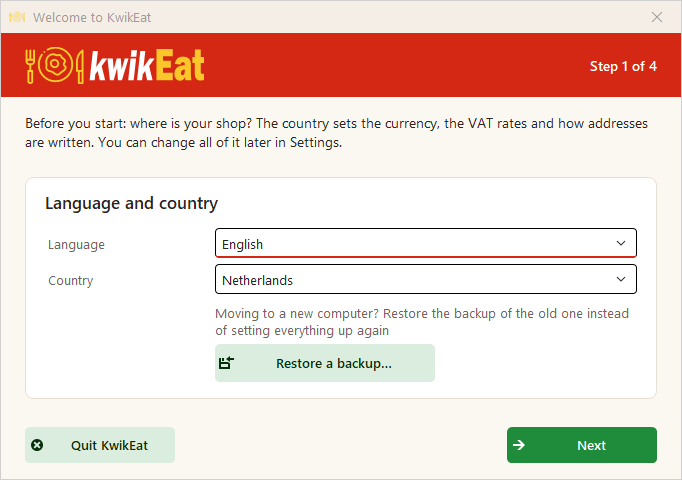
- Language and country. The country sets the currency, the VAT rates and how addresses are written. You can change the language per PC later, top right next to the clock.
- Your shop: the name as it appears on receipts and in the web shop.
- Shop address: the starting point for delivery distances. In the Netherlands you enter the postcode and house number; street and town are filled in by themselves.
- Shop PIN: 4 to 8 digits. It is asked for the Menu, Settings, Reports and End of day, so not everyone behind the counter can get there. Which parts ask for the PIN can be set later.
You can change everything later in Settings (F9). A new shop gets a sample menu (pizza, pasta, sides, drinks, desserts), so you can try things at once. Change it or throw it away.
Moving to a new computer? At the first start choose Restore a backup… and restore the old PC's backup instead of setting everything up again. See Backup.
Trial and licence
You can try KwikEat Desktop free for 14 days, once on every PC. After that you need a licence, which you order at Order / renew. You receive the licence holder, the licence code and the registration code by e-mail; enter them in the licence window.
A licence is valid for 370 days. When it has expired KwikEat keeps working, but printing is off until you renew. Renew within two months before or after the expiry date and you get the renewal discount, and the new licence continues from the old expiry date. See the terms.
Updates
KwikEat checks at start and then every 4 hours whether there is a new version in the Store. If there is, you see a notice with Update now and Later. If there are open orders, KwikEat warns you first; the orders are kept.
Moving from AnyOrder
In Settings (F9) → Links & security → Import from AnyOrder you import AnyOrder's data straight from the AnyOrder data folder:
- the menu: groups, products, sizes (as an option) and choices. It replaces the KwikEat menu;
- the customers, with their addresses; double customers are merged;
- the couriers and the payment methods.
KwikEat reads the AnyOrder database itself; AnyOrder may keep running. Old orders and postcodes are not taken over. Keep the AnyOrder data folder: you must keep those orders for 7 years for the tax authorities. Check the menu after the import: sizes AnyOrder had per product become one Size option for the whole group where possible.
Last updated: 15 October 2026